Configure SSO with Microsoft Entra
Before you configure user authentication by using Microsoft Entra, make sure you complete the following prerequisites:
Prerequisites
Before you select this option, make sure you complete the following prerequisites:
-
Microsoft Entra is configured
Microsoft Entra must be set up and linked to your organization’s cloud environment. This involves creating a directory in the Microsoft Entra portal and integrating it with your organization's identity management processes.
-
Application is registered in the Microsoft Entra portal
You need to register Calibo Accelerate as an application in Microsoft Entra. This process generates a unique application identity, which allows Calibo Accelerate to interact securely with Microsoft Entra for authentication purposes. During registration, you need to define settings like redirect URIs, permissions, and user assignments.
-
Fetch Tenant ID, Client ID, and Client Secret of the registered application from Microsoft Entra portal
-
Tenant ID: A unique identifier for your Microsoft Entra tenant (directory). This value is needed to establish a connection between Calibo Accelerate and your Microsoft Entra instance.
-
Client ID: Also known as the application ID, this is generated when you register your application in Microsoft Entra. It uniquely identifies the registered application.
-
Client Secret: This is a secret key generated in Microsoft Entra that acts like a password for the application. It’s required to authenticate Calibo Accelerate during the SSO process.
-
-
Add mandatory API permissions to the application in Microsoft Entra:
-
User.Read (Default): This permission allows Calibo Accelerate to read the basic profile information of the signed-in user (such as name and email).
-
User.Read.All (Type – Application): This permission is required for Calibo Accelerate to read the profiles of all users within the Microsoft Entra directory. It is essential for managing user access and importing users into the Calibo Accelerate platform.
-
To configure user authentication by using Microsoft Entra Directory, do the following:
1. Configure Microsoft Entra details
-
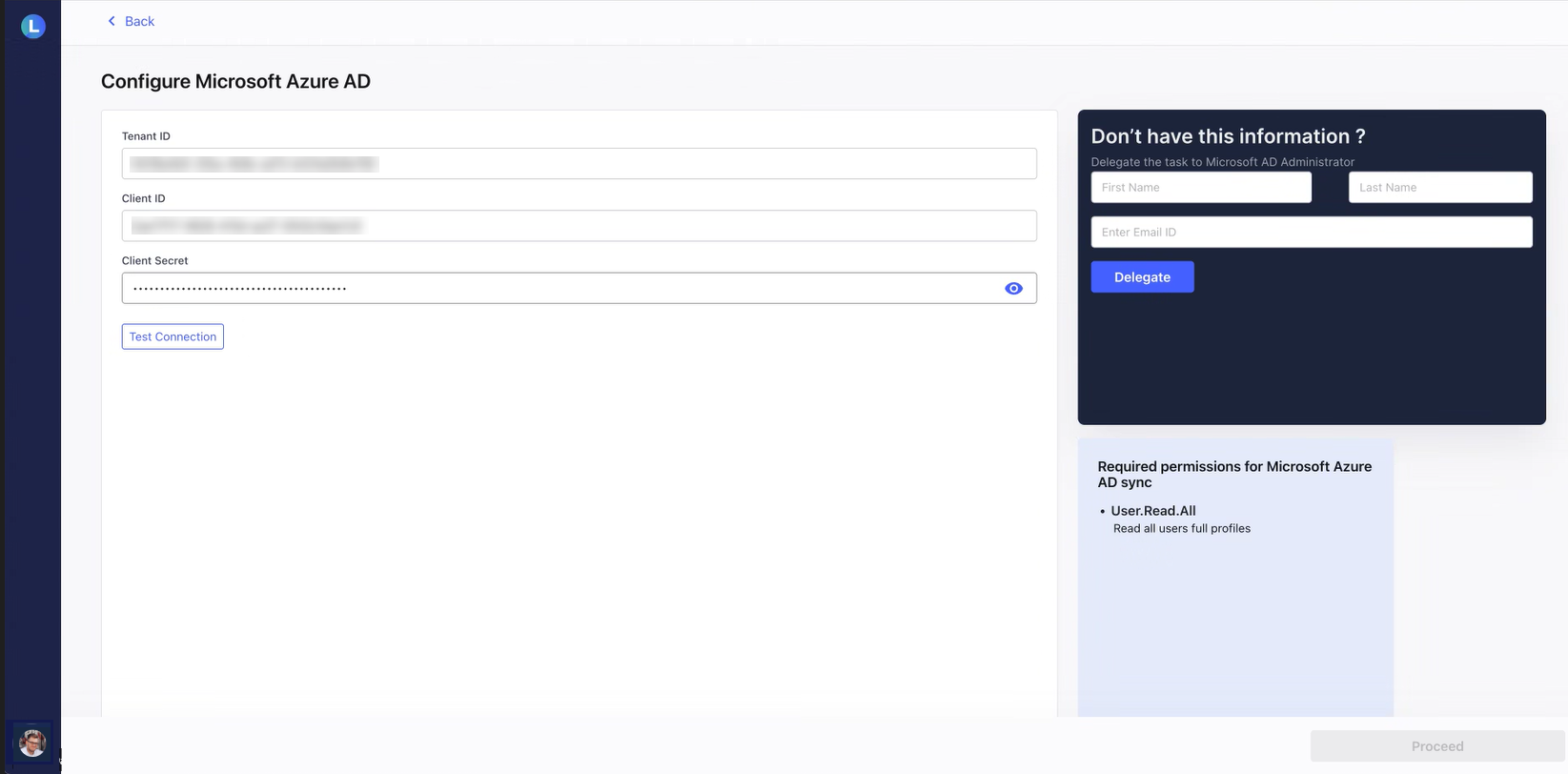
On the Configure Microsoft Entra ID screen, enter the values for the following fields that you fetched in the Prerequisites section:
-
Tenant ID
-
Client ID
-
Client Secret
-
-
Click Test Connection to validate the connection details that you have configured.
-
After a successful test connection, click Next.
2. Import/Add users
You can either import users from Microsoft Entra ID or manually add users to the platform. On the Import/Add users screen, do one of the following:
 Import Users
-
Click Import Users
On the Import/Add Users screen, click Microsoft Entra ID, and then click Next.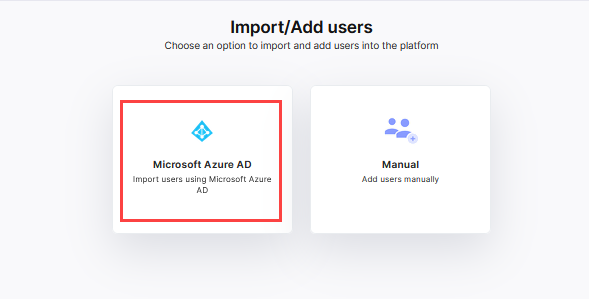
-
Select Users to Add to the Platform
A list of users imported from Microsoft Entra ID is displayed. Select the appropriate boxes for the users you want to add to the Calibo Accelerate platform. In the search box, you can search for a user by their name or email address. Additionally, you can apply a country filter to narrow down the results.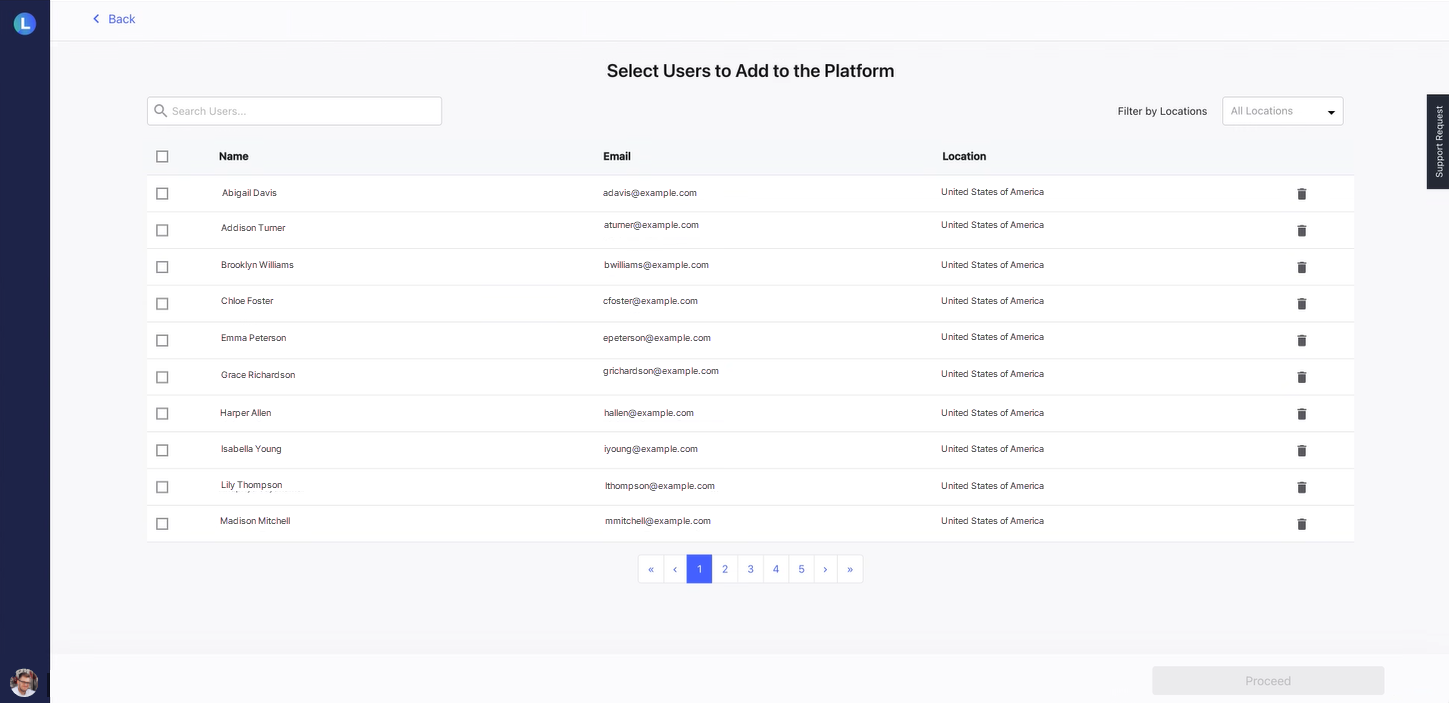
After you select all the intended users, click Proceed. It's time to choose platform administrators.
Add Users Manually
To add users manually, do the following:
-
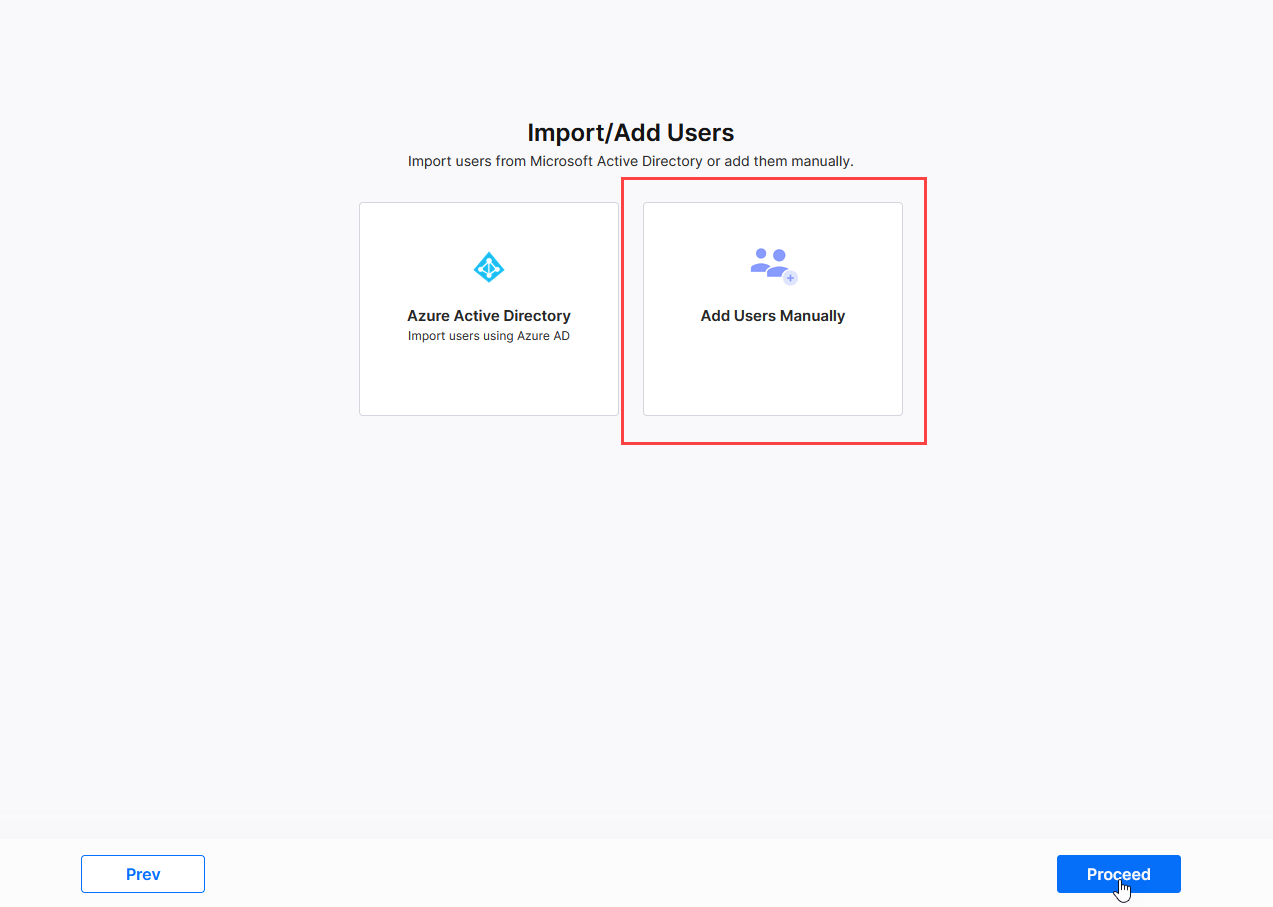
On the Import/Add Users screen, click Add Users Manually.
-
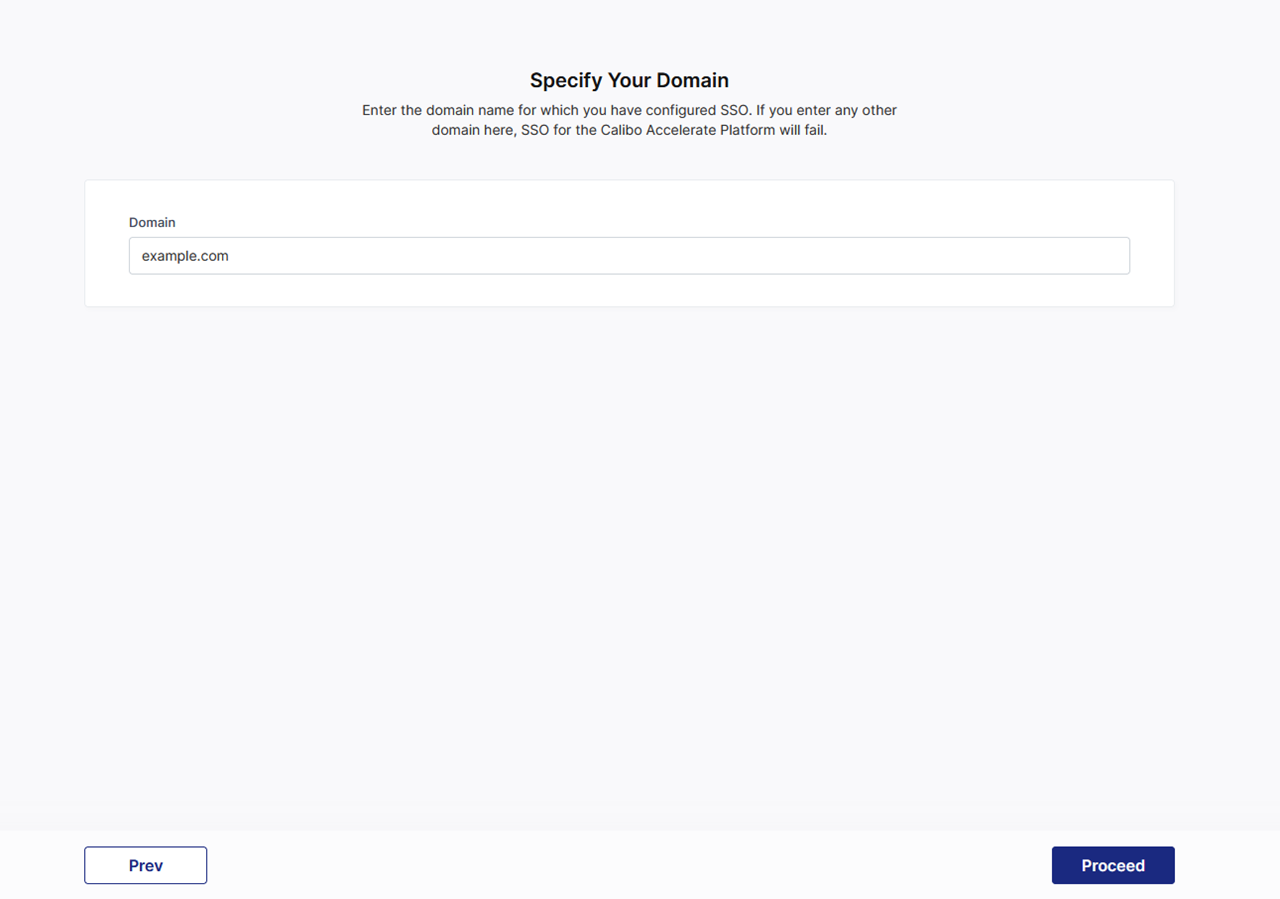
On the Specify Your Domain screen, enter the domain name for which you have configured SSO.
If you enter any other domain here, SSO for the Calibo Accelerate platform will fail. -
Click Proceed.
-
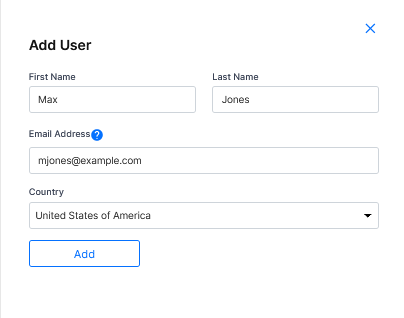
On the Add Users to the Platform screen, click Add Users.
-
In the side drawer, enter the user details, including their first name, last name, a valid email address, and select the country. Then, click Add.
-
After you add all the intended users, click Proceed. It's time to choose platform administrators.
3. Select administrators
On the Select Administrators screen, in the search box, you see all the users that you added in the previous step. Start typing the name of the user you want to designate as an administrator. After you select all the intended administrators, click Next.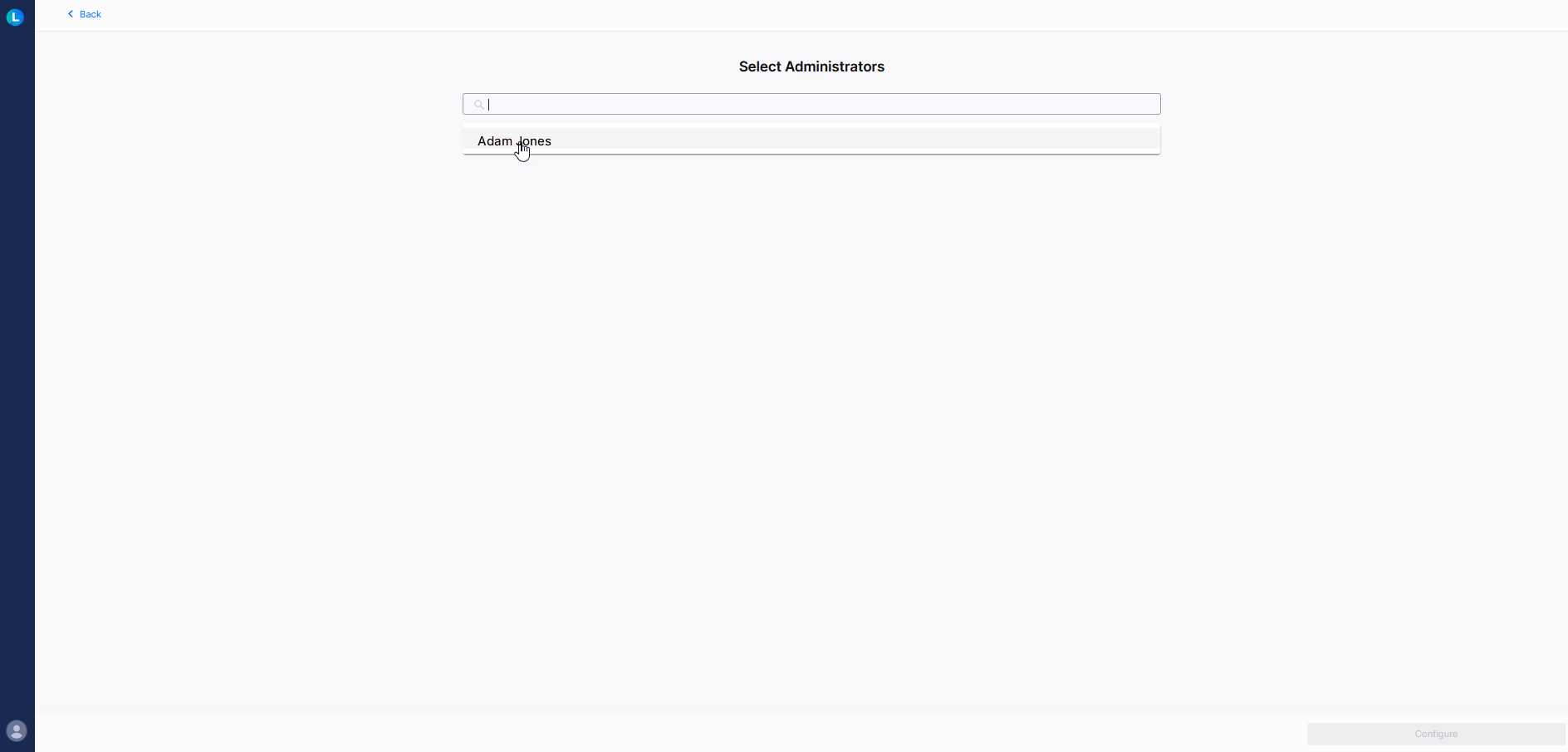
4. Review Platform Users
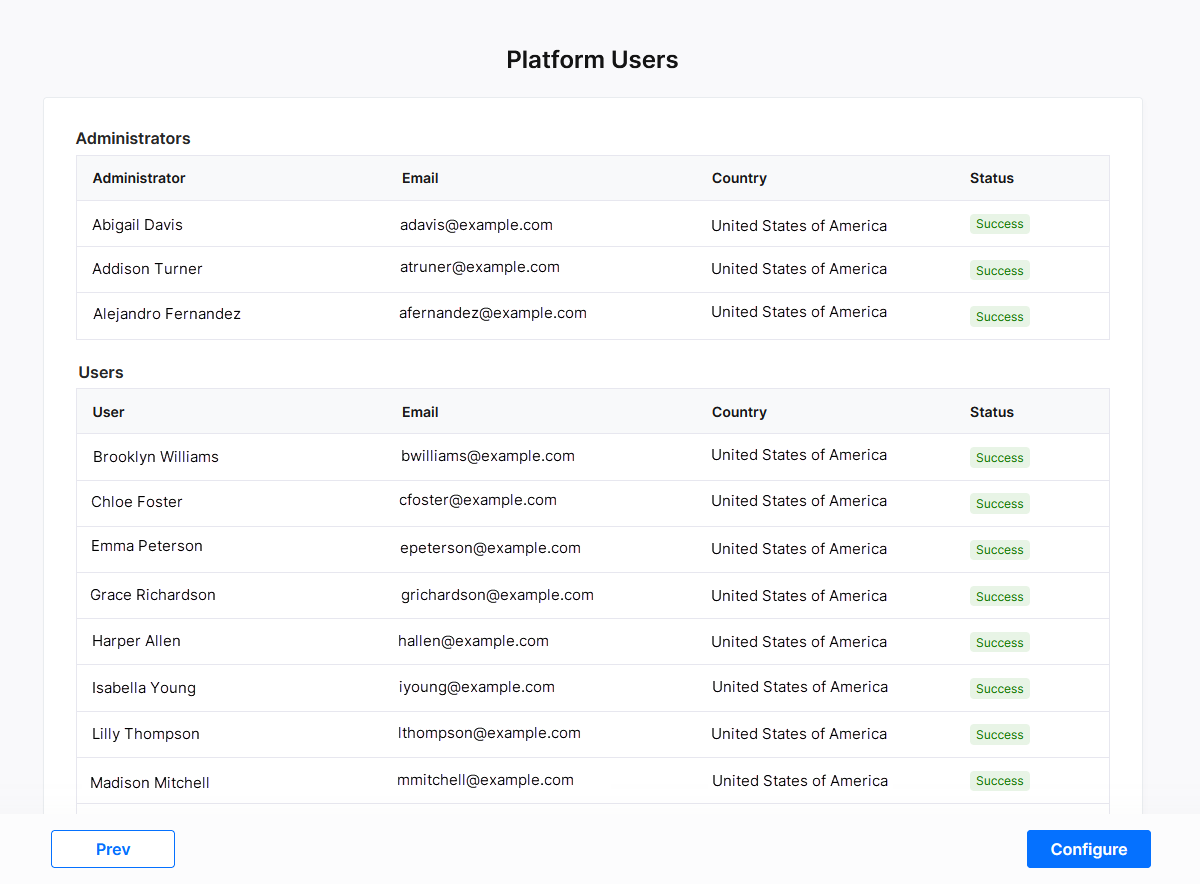
The Platform Users screen displays the list of all the administrators and users you chose to add to the Calibo Accelerate platform in the previous steps. The details such as each user's name, email address, and country are displayed. The Status column indicates whether the user was successfully added or if there was an issue. In case of failure, review the error messages and take the necessary action.
You can go back to the previous screen to make any changes or click Next to finish adding users to the Calibo Accelerate platform.
5. Add redirect URI to Microsoft Entra ID
After you click Configure in the previous step, the SSO configuration in the Calibo Accelerate platform interface is complete and a redirect URI is available. Copy this URI and add it to the registered application (mentioned in the prerequisites) in the Microsoft Entra ID portal. It is the Calibo Accelerate platform URL where Microsoft Entra ID must send authentication responses after successfully verifying a user’s identity. After you add the redirect URI to Microsoft Entra, the SSO setup is complete.
6. Validate Single Sign-on
-
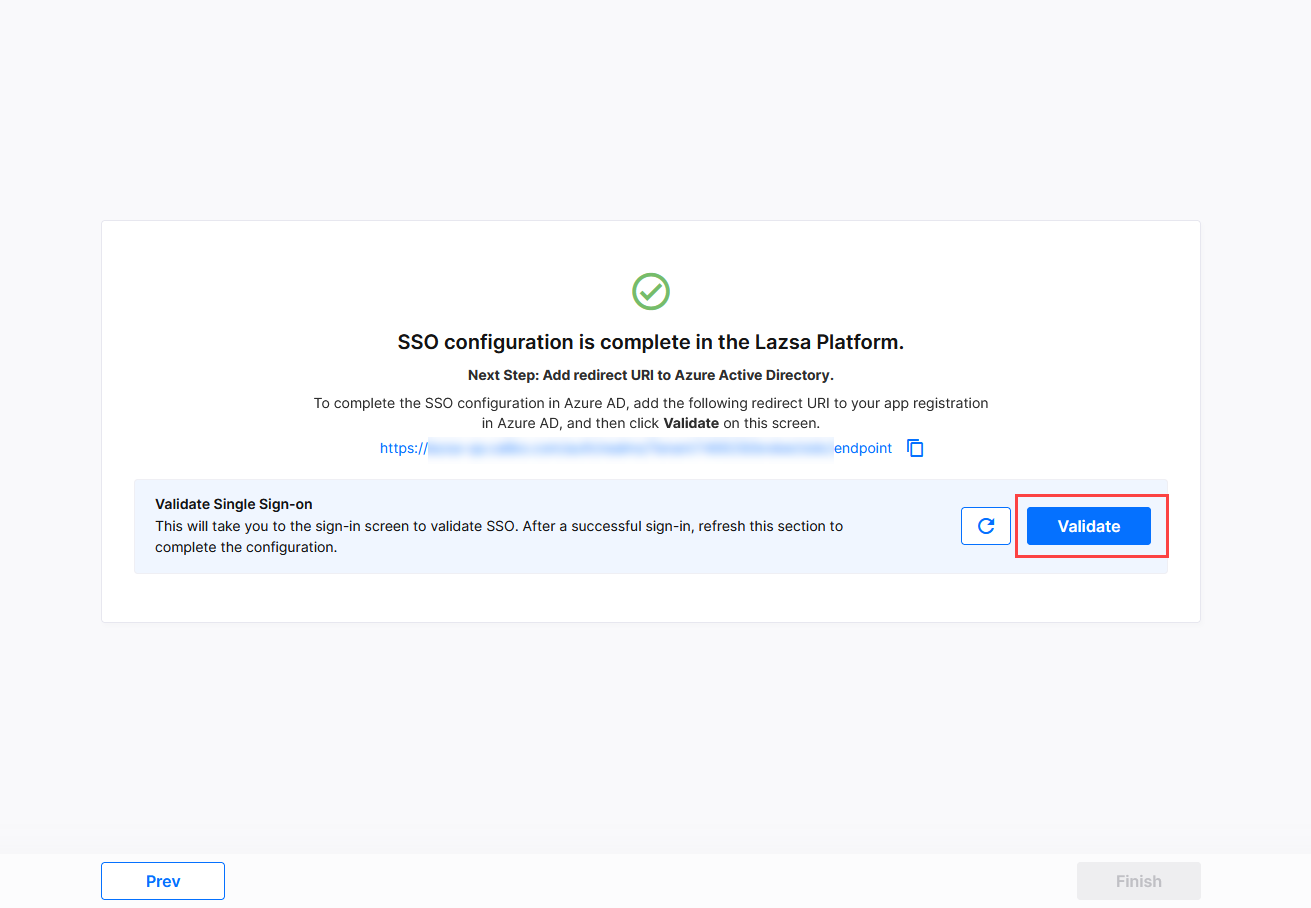
After you add the redirect URI to your registered app in Microsoft Entra, come back to the Calibo Accelerate F24H Wizard screen from where you copied the redirect URI, and in the Validate Single Sign-on section, click Validate.
-
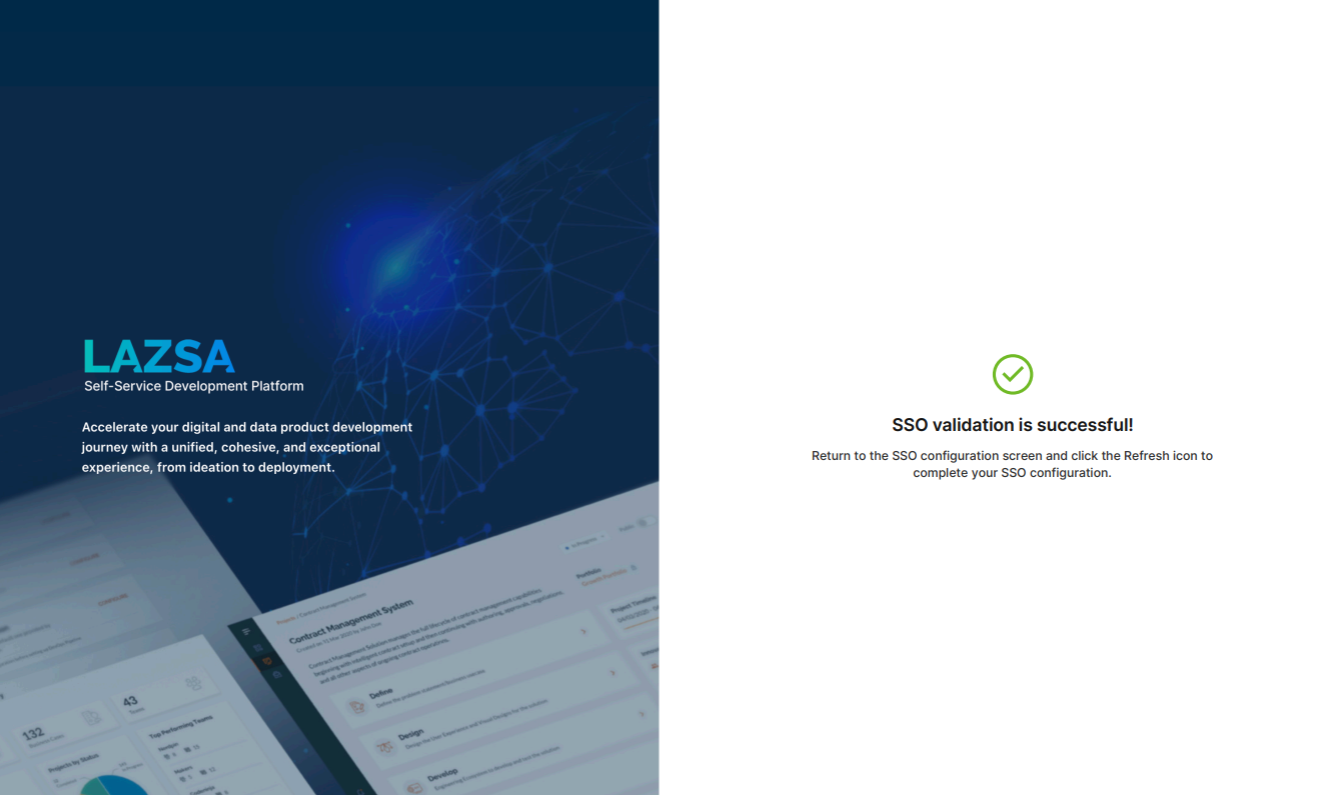
This takes you to the Calibo Accelerate platform sign-in screen. Use SSO credentials for user authentication. After a successful authentication redirection and SSO validation, the following success message is displayed.
-
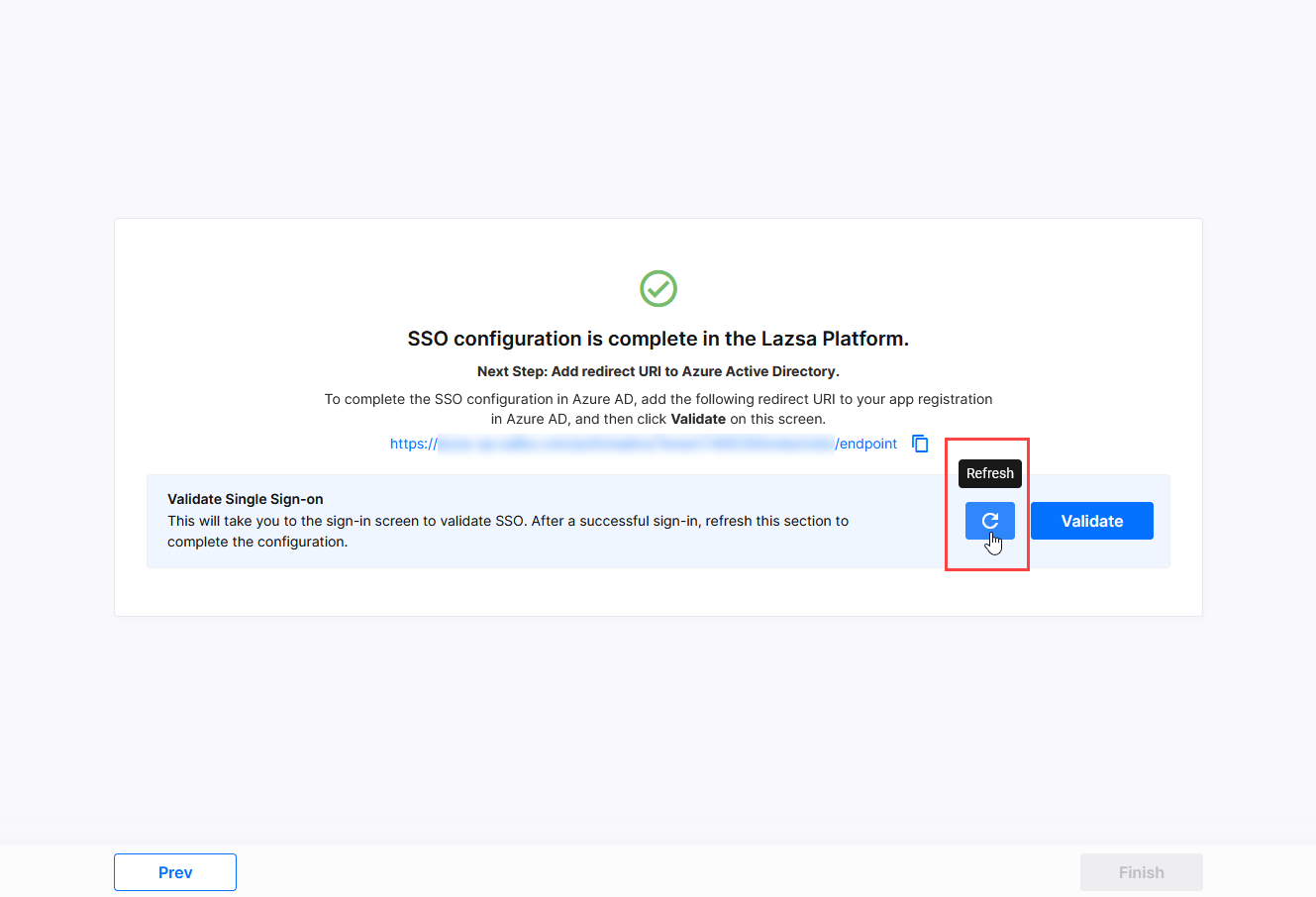
Return to the SSO configuration screen and click the Refresh icon to complete your SSO configuration.
-
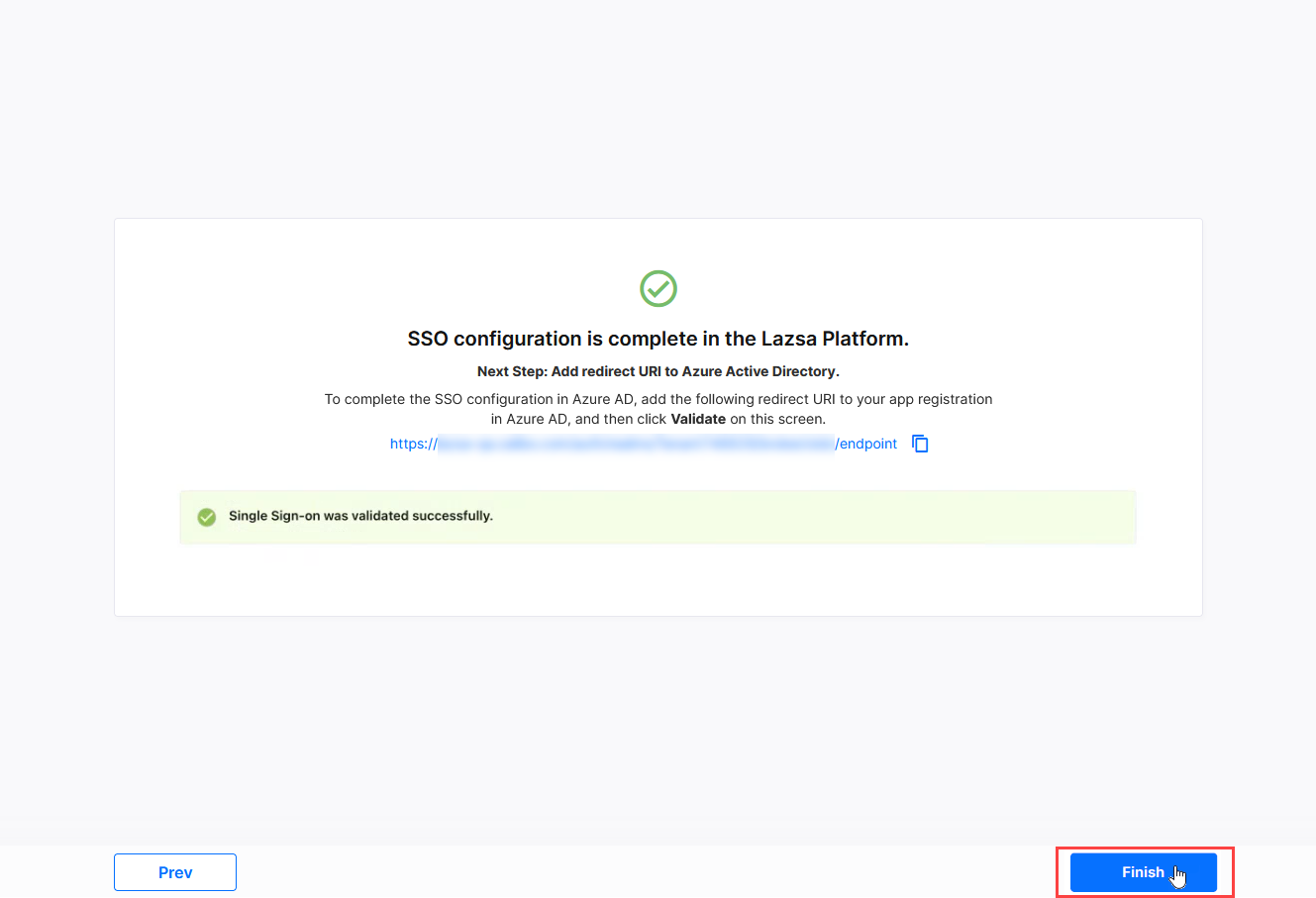
After you see the message confirming that your SSO validation is successful, click Finish to complete the configuration in the F24H wizard.

Note:
After you click Finish and exit the F24H wizard, the credentials using which you signed in to the F24H wizard will not work anymore. The administrator that you selected in the earlier step can sign in to the Calibo Accelerate platform by using SSO credentials, add more users to the platform, and perform other administrative tasks.
| What's next? Platform Setup |